Get Tickets
 Book Hotel
Set Your Badge to the USA Preset
After the conference, switch your badge from the QueenCityCon radio preset to the standard USA MeshCore preset.
OffBand on iOS and Android
Follow these six steps in order. The same screens and steps apply to the OffBand apps on iOS and Android.
-
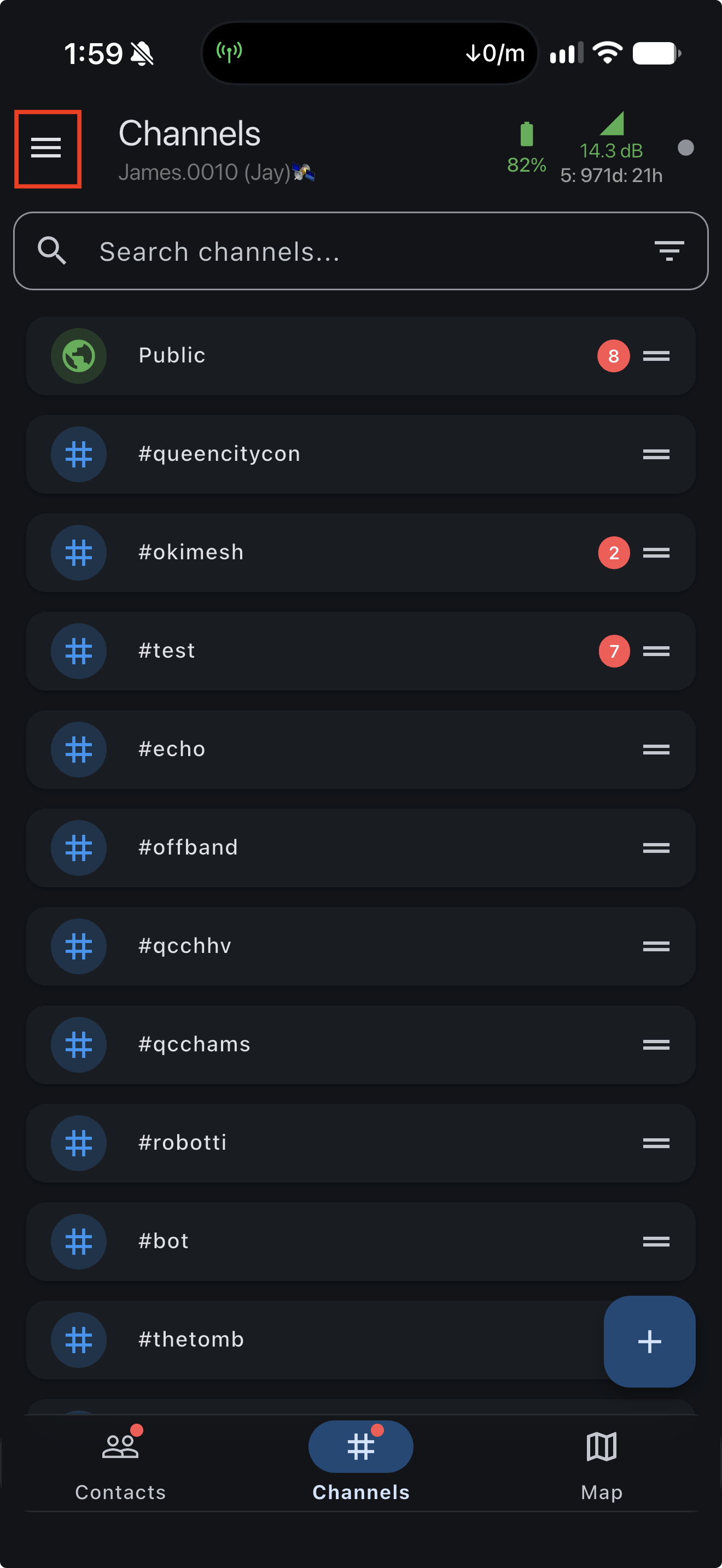
1. Open the side menu
In OffBand, tap the hamburger icon in the upper-left corner.
-
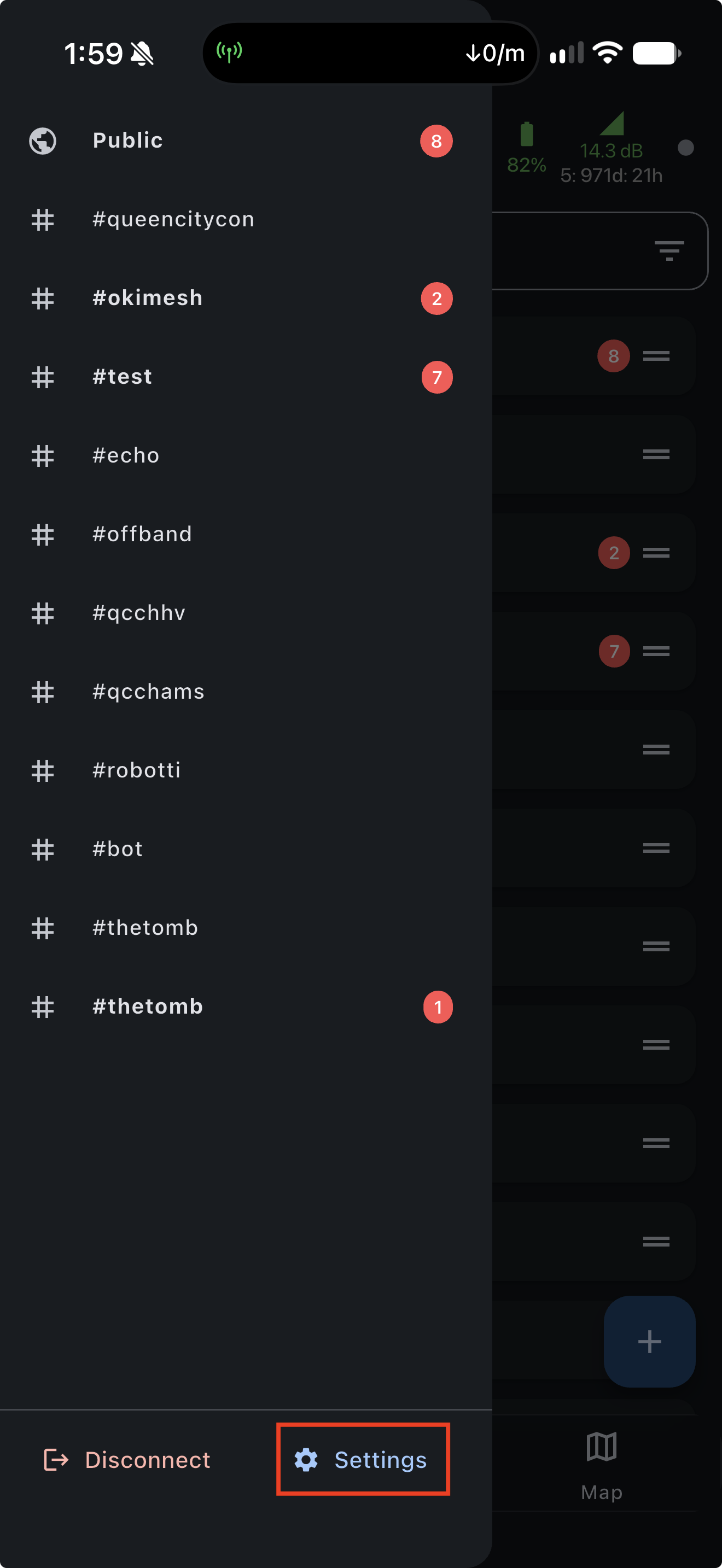
2. Open Settings
At the bottom of the side menu, tap Settings.
-
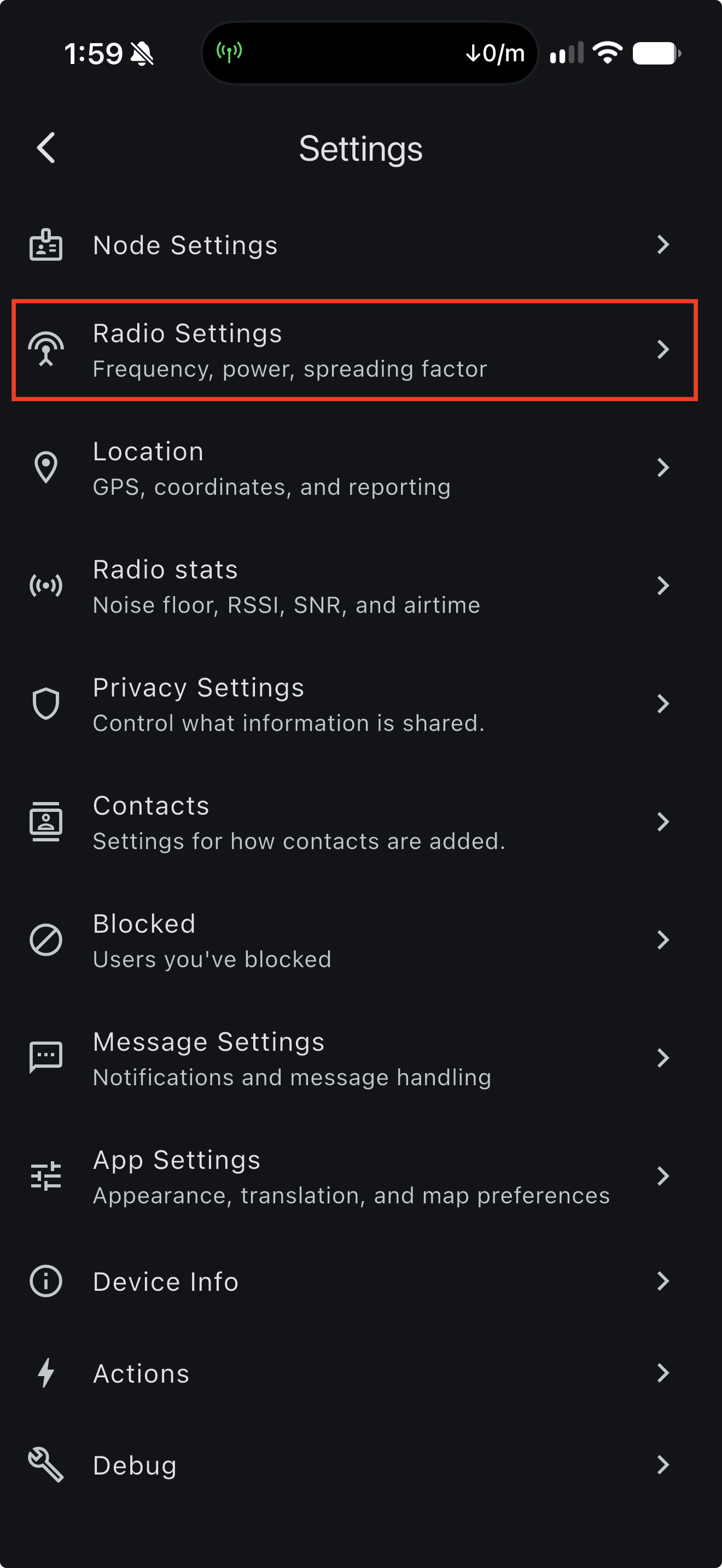
3. Open Radio Settings
On the Settings screen, tap Radio Settings.
-
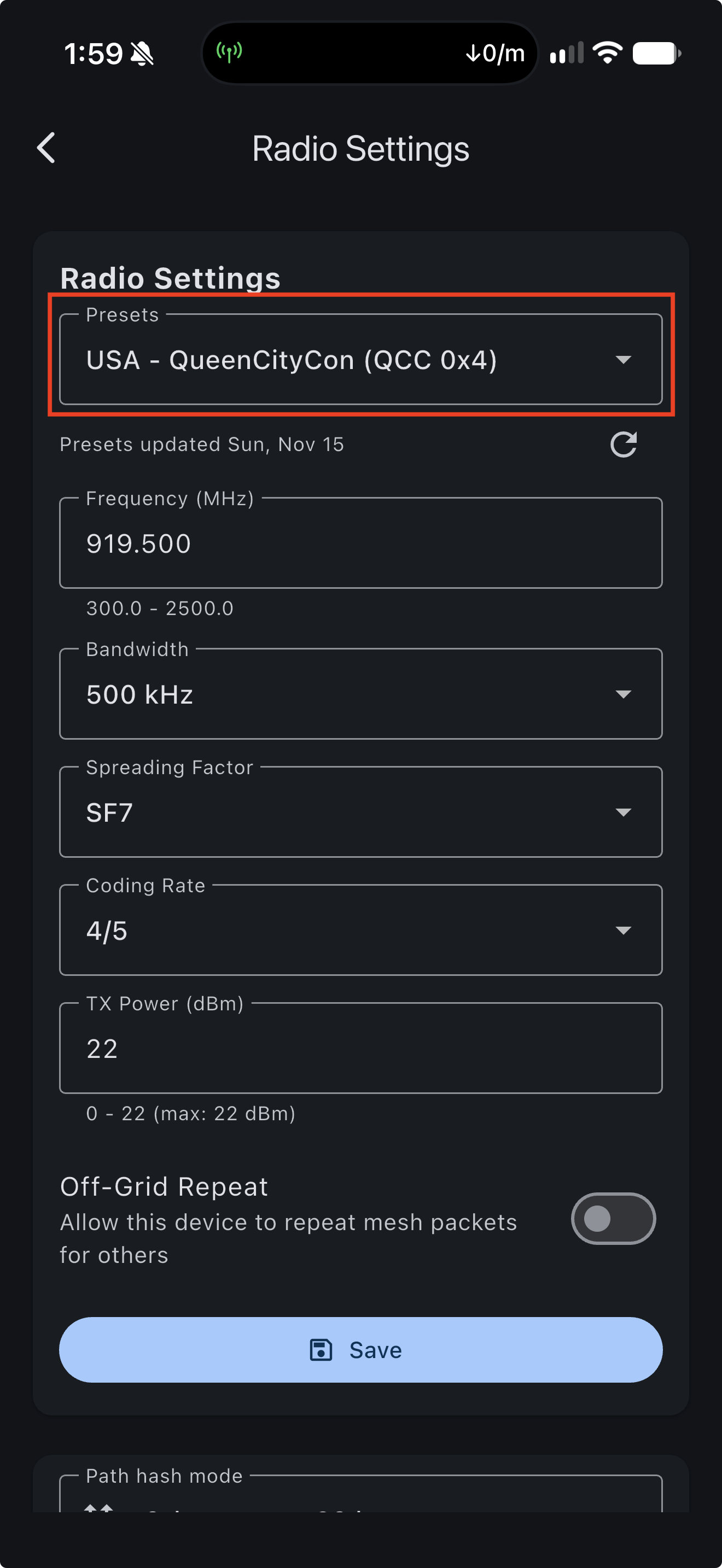
4. Open the Presets list
On the Radio Settings screen, tap the Presets dropdown.
-
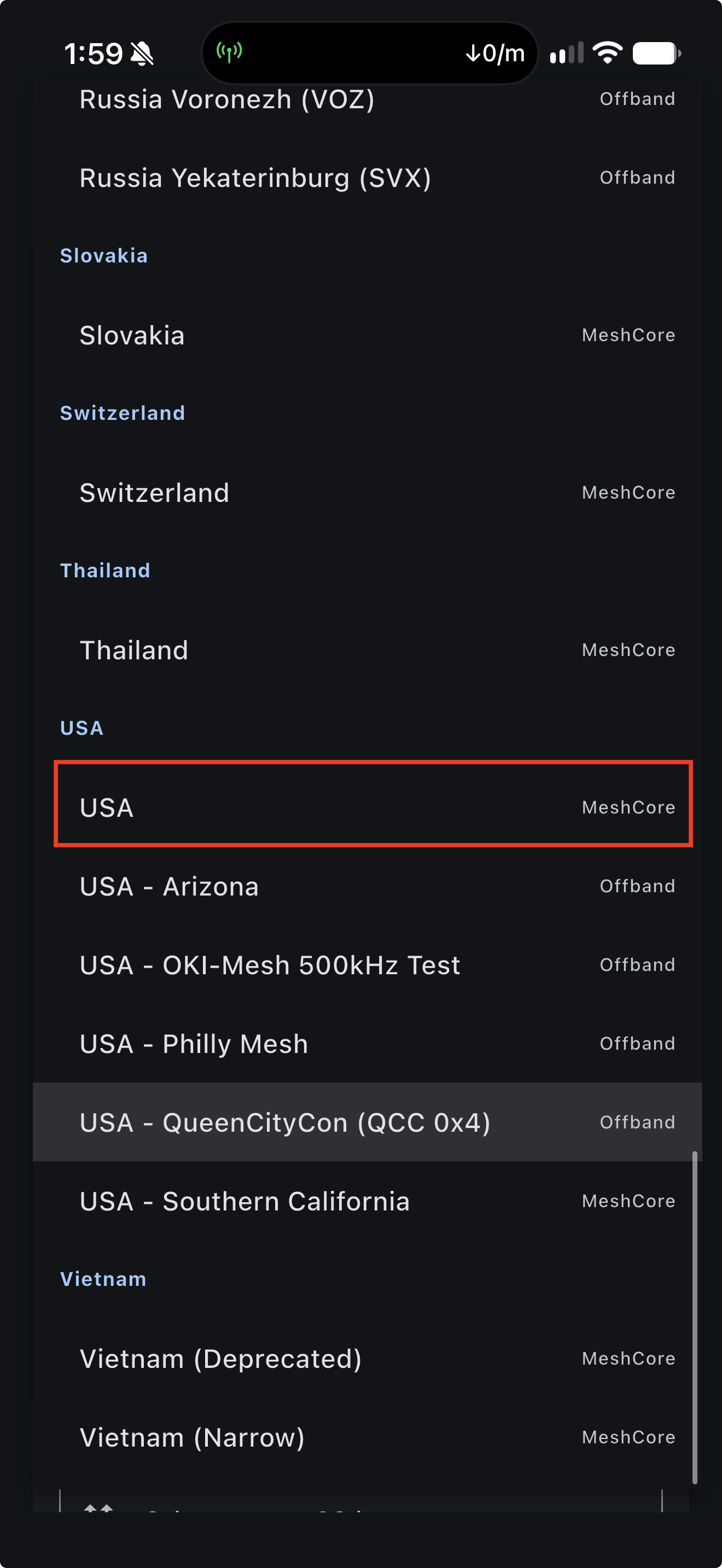
5. Select USA
Choose the plain USA preset labeled MeshCore. Do not select the conference-specific USA - QueenCityCon (QCC 0x4) preset.
-
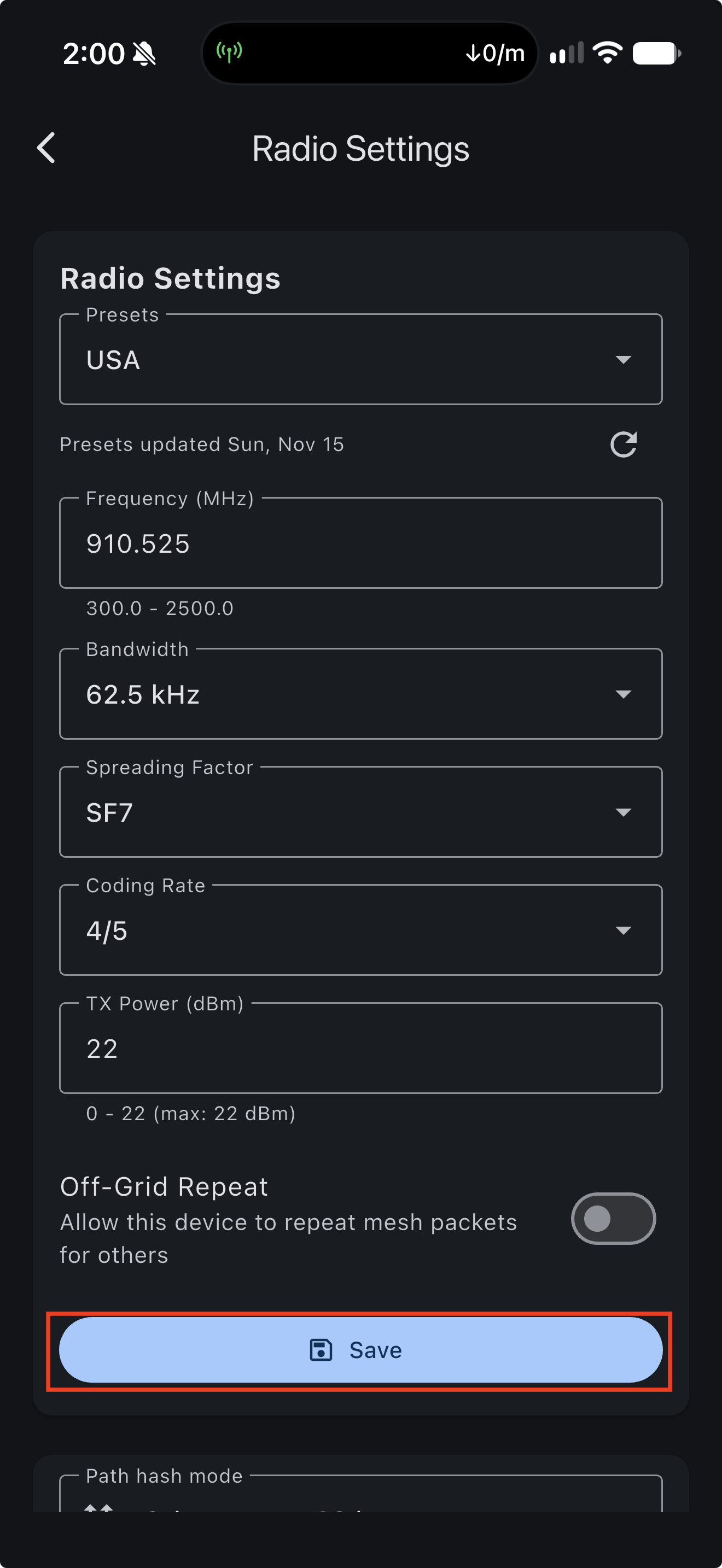
6. Save the setting
Confirm the Presets field shows USA, then tap Save.